Hello all,
My next big collection of FREE cinema tools is ready for testing!
This project was inspired by Wolfgang Woehl and his excellent DCP Inspect website.
I was amazed at how well WebAssembly worked, so I decided to take the same approach and build a whole collection of DCP tools using this technology. That's why they're called WA Tools.
The beauty of WebAssembly is that these tools are loaded from a web page but run locally on your computer, much like a native application. They can read and write directly to your local disks, without needing to upload massive DCP files to a server. The new WA DCP Tools
At this stage, only the two main tools, WA DCP Player and WA DCP Maker, have undergone testing.
Both are also available as standalone macOS and Windows applications, although the Windows versions have not been tested at all yet.
The remaining tools are currently web-only and have had virtually no real-world testing.
So, I'd really appreciate people giving them a try, particularly those who work regularly with DCPs. Try them on different DCPs, see what works, what breaks, and let me know what needs improving.
They are all FREE, and the idea is to make useful, practical DCP tools accessible to everyone, particularly smaller independent cinemas that don't have access to expensive commercial software.
Try the WA DCP Tools here:
https://tools.d-cine.net/s1/dcp_tool...wa_dcp_player/ And don't forget the other FREE cinema tools!
I've also been busy building several other tools for cinema operators:
Cinema-Sign – Digital Signage for Cinemas
A free digital signage solution designed specifically for cinema use.
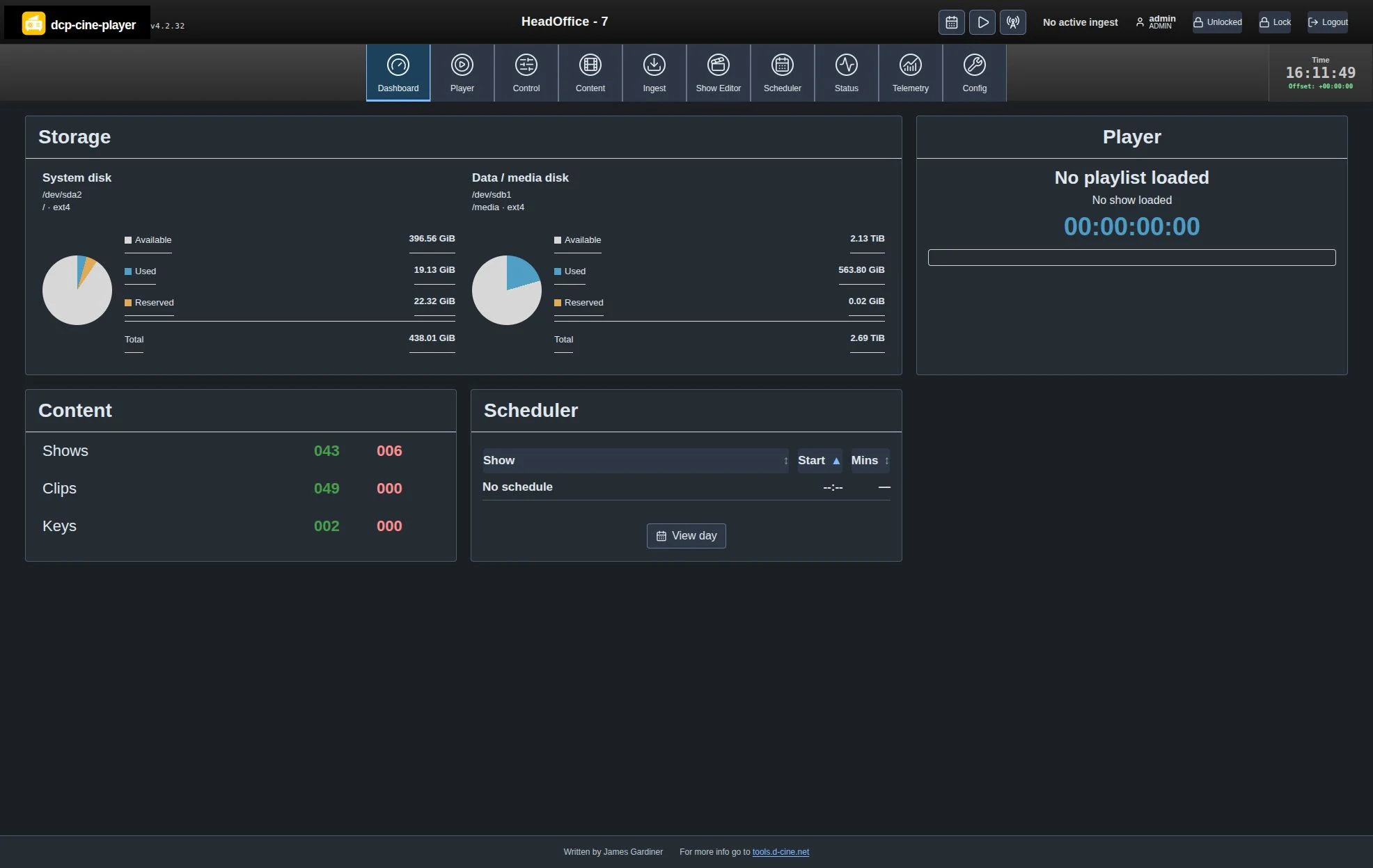
dcp-cine-player – Software-Based DCP/Media Player Appliance
A complete software-based DCP and media player solution.
CatcherTMS – A Swiss Army Knife for Cinema Operators
A growing collection of tools for managing and monitoring cinema systems. The TMS functionality is still under development, but the new audio QC and analysis tools have just been completed.
https://tools.d-cine.net/s1/catcher-tms/about/
As always, the aim is to make professional cinema technology more accessible, particularly to independent operators who often have to work with limited resources.
There's still plenty to do, but the more people who try these tools and provide feedback, the better they'll become.
Give them a go, break things, and tell me what you find!
Regards,
James Gardiner
Digital Cinema Network (DCN)
My next big collection of FREE cinema tools is ready for testing!
This project was inspired by Wolfgang Woehl and his excellent DCP Inspect website.
I was amazed at how well WebAssembly worked, so I decided to take the same approach and build a whole collection of DCP tools using this technology. That's why they're called WA Tools.
The beauty of WebAssembly is that these tools are loaded from a web page but run locally on your computer, much like a native application. They can read and write directly to your local disks, without needing to upload massive DCP files to a server. The new WA DCP Tools
- WA DCP Player – Open and play DCPs directly from a web page, or download the standalone macOS application. Includes video and audio QC tools, along with DCP compliance checks.
- WA DCP Maker – Yes, you can actually MAKE a DCP! But rather than simply converting files, this tool walks you through the process, encouraging the creation of properly compliant DCPs suitable for cinema use. This includes Digital Cinema Naming Convention (DCNC) enforcement, audio loudness compliance and other important checks.
- WA DCP Fix Audio – Raise or lower the audio level of an existing DCP, with analysis and adjustment based on Leq(m) loudness compliance.
- WA DCP SDR to HDR – Convert an SDR DCP into an HDR-compatible DCP that can be played with the projector in HDR mode, while preserving the intended SDR appearance.
- WA DCP to Encrypted DCP – Encrypt an existing DCP, then use the free KdmGen tool to generate KDMs through a web portal. This integrates with OpenTDL, allowing participating cinemas to provide the certificate information needed for KDM generation.
- WA DCP CPL Rename – Copy a DCP into a new directory while renaming its CPL according to DCNC naming rules.
At this stage, only the two main tools, WA DCP Player and WA DCP Maker, have undergone testing.
Both are also available as standalone macOS and Windows applications, although the Windows versions have not been tested at all yet.
The remaining tools are currently web-only and have had virtually no real-world testing.
So, I'd really appreciate people giving them a try, particularly those who work regularly with DCPs. Try them on different DCPs, see what works, what breaks, and let me know what needs improving.
They are all FREE, and the idea is to make useful, practical DCP tools accessible to everyone, particularly smaller independent cinemas that don't have access to expensive commercial software.
Try the WA DCP Tools here:
https://tools.d-cine.net/s1/dcp_tool...wa_dcp_player/ And don't forget the other FREE cinema tools!
I've also been busy building several other tools for cinema operators:
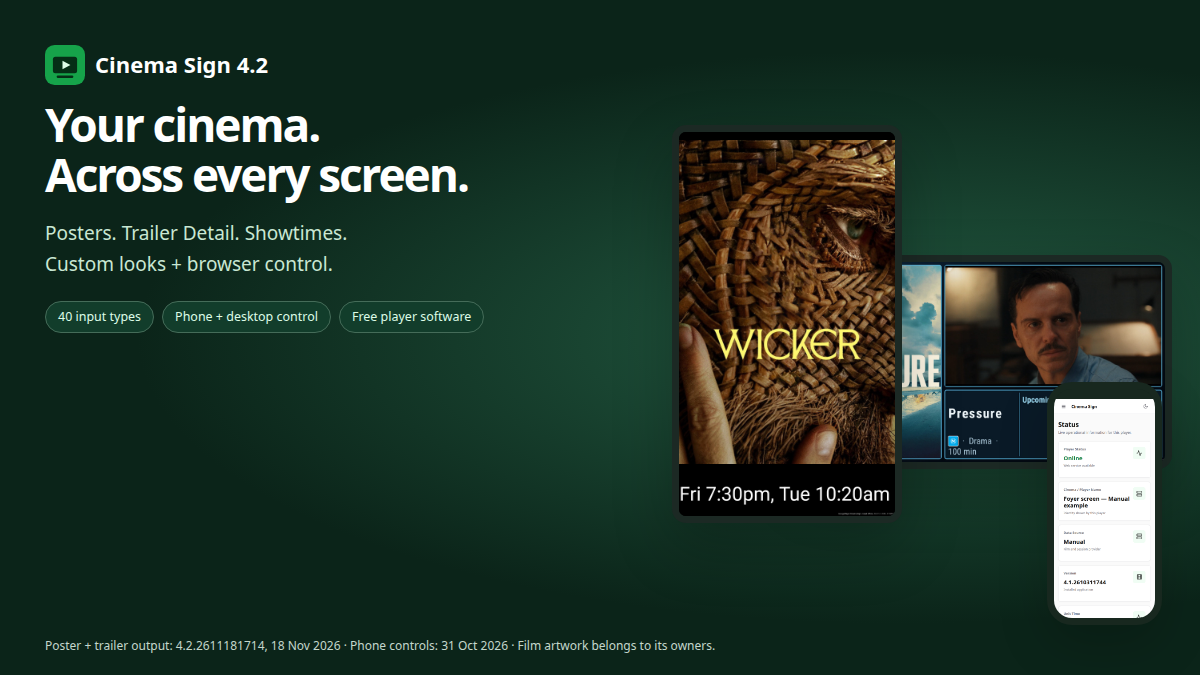
Cinema-Sign – Digital Signage for Cinemas
A free digital signage solution designed specifically for cinema use.
dcp-cine-player – Software-Based DCP/Media Player Appliance
A complete software-based DCP and media player solution.
CatcherTMS – A Swiss Army Knife for Cinema Operators
A growing collection of tools for managing and monitoring cinema systems. The TMS functionality is still under development, but the new audio QC and analysis tools have just been completed.
https://tools.d-cine.net/s1/catcher-tms/about/
As always, the aim is to make professional cinema technology more accessible, particularly to independent operators who often have to work with limited resources.
There's still plenty to do, but the more people who try these tools and provide feedback, the better they'll become.
Give them a go, break things, and tell me what you find!
Regards,
James Gardiner
Digital Cinema Network (DCN)


Comment